Setting up peptracks
This guide walks you through installing peptracks on your phone and setting up your account. It takes about two minutes.
1 Add peptracks to your home screen
-
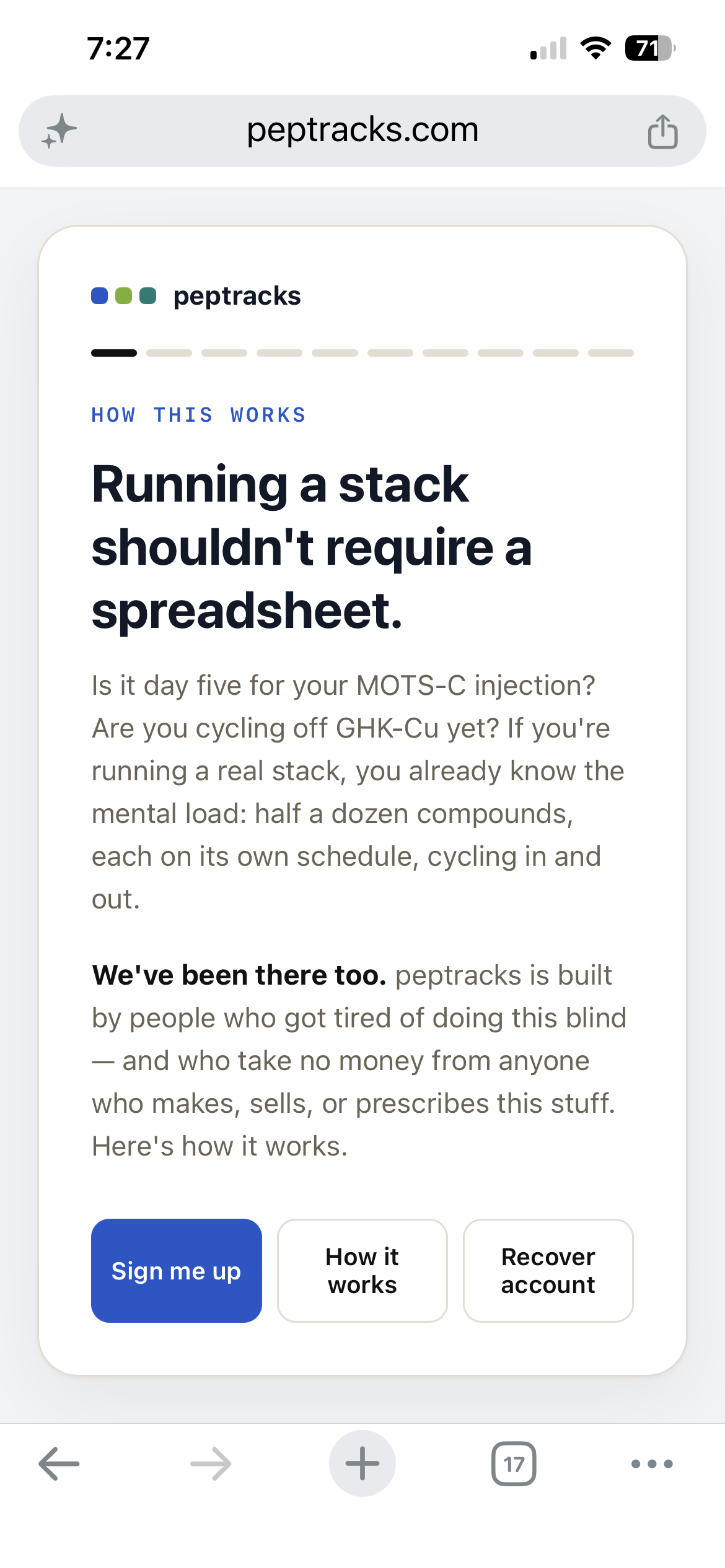
Open your phone's browser and go to peptracks.com/loginUse Safari (iPhone) or Chrome (Android). Once the page loads, tap the Share icon — on iPhone it's the square with an up-arrow in the top or bottom bar.
-
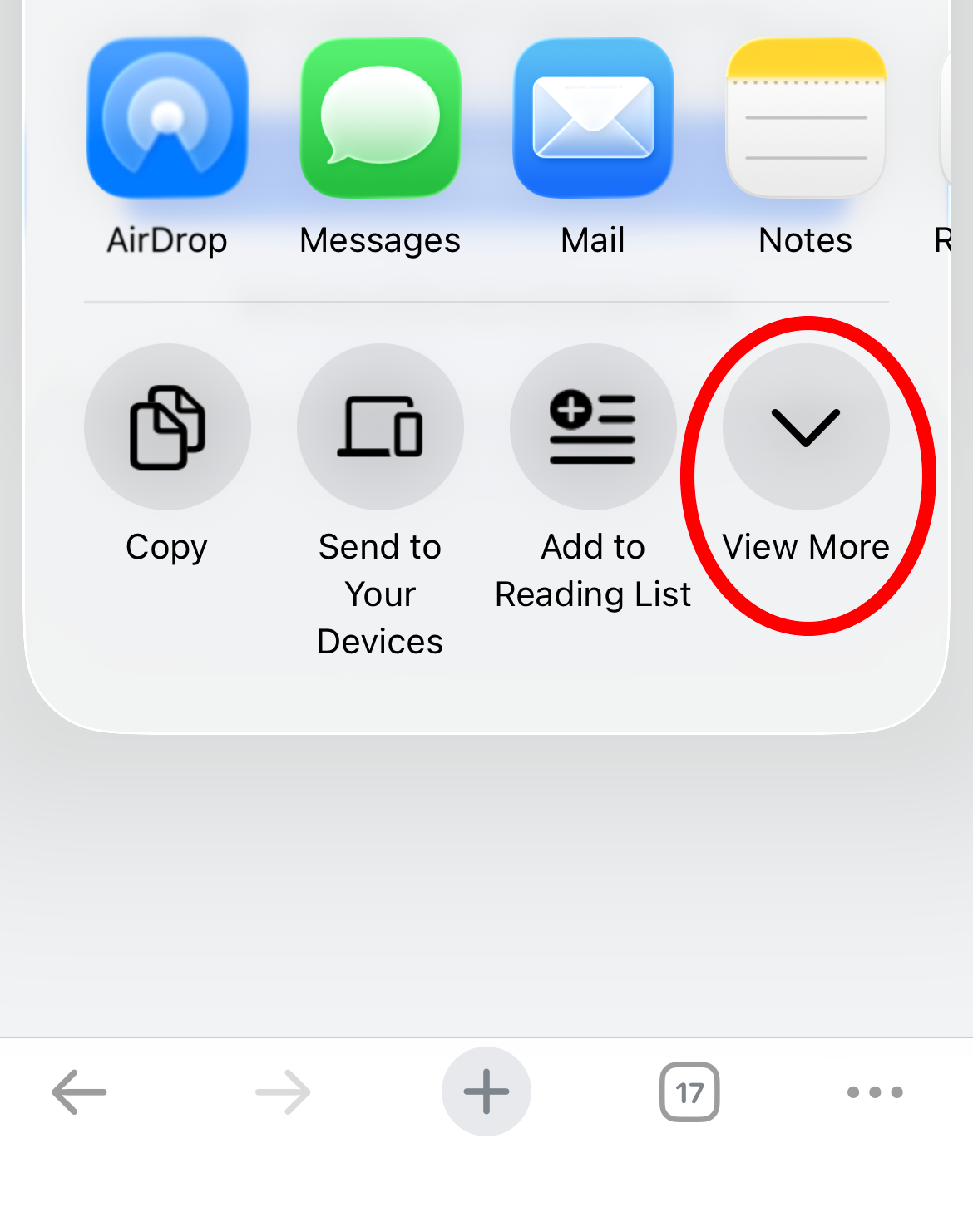
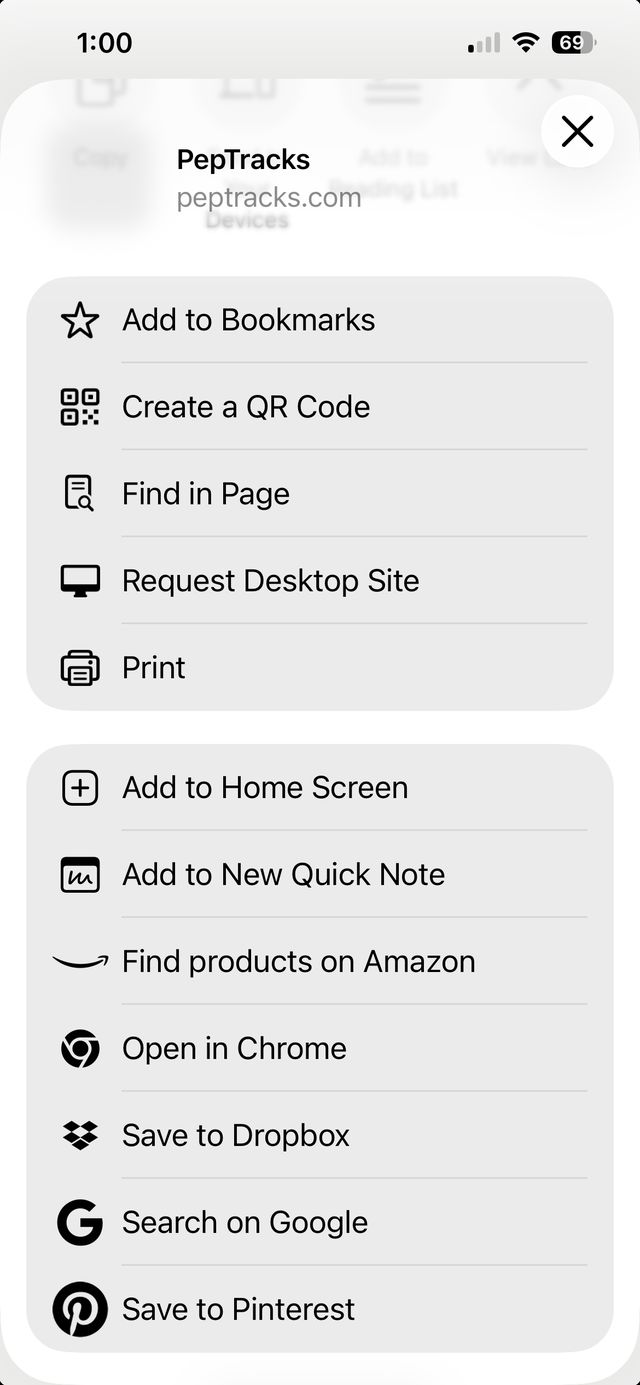
Tap "Add to Home Screen"In the share menu, scroll until you find Add to Home Screen. On some phones you may first need to tap View More (the down-chevron) to see all the options.
-
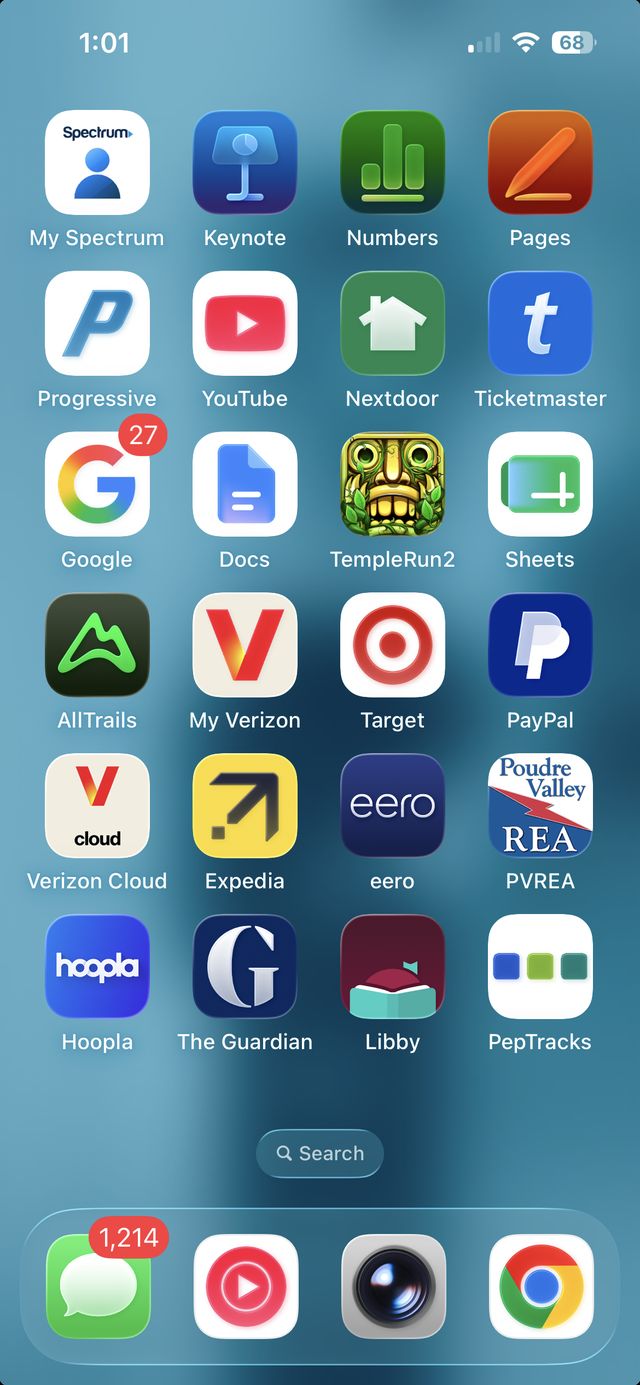
Find the peptracks icon on your home screenA peptracks icon (look for the three colored beads) will appear on your home screen, just like a regular app. Tap it to launch.Why add it to the home screen? It makes peptracks open full-screen like a normal app, and it's how your reminders and quick daily check-ins work best. Opening it from a browser tab won't feel the same.
2 Create your account
-
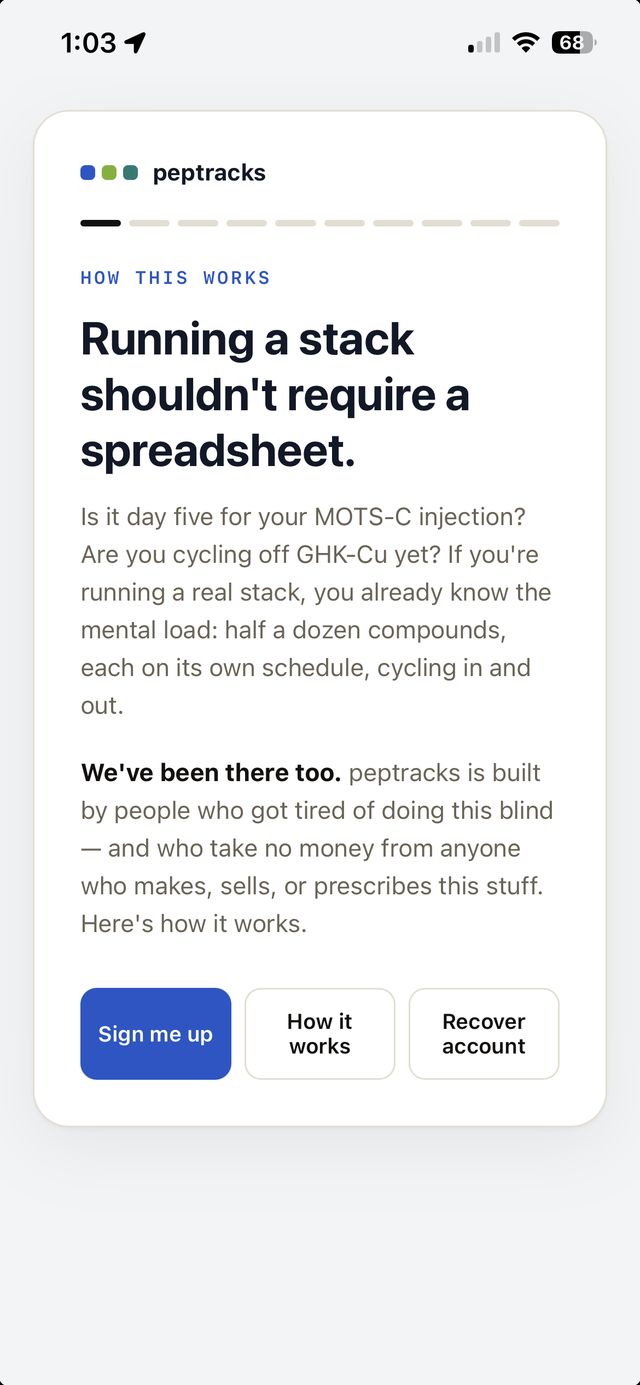
Tap "Sign me up"When peptracks opens, you'll see a welcome screen. Tap Sign me up to start. (Already have an account on another device? Tap Recover account instead.)
-
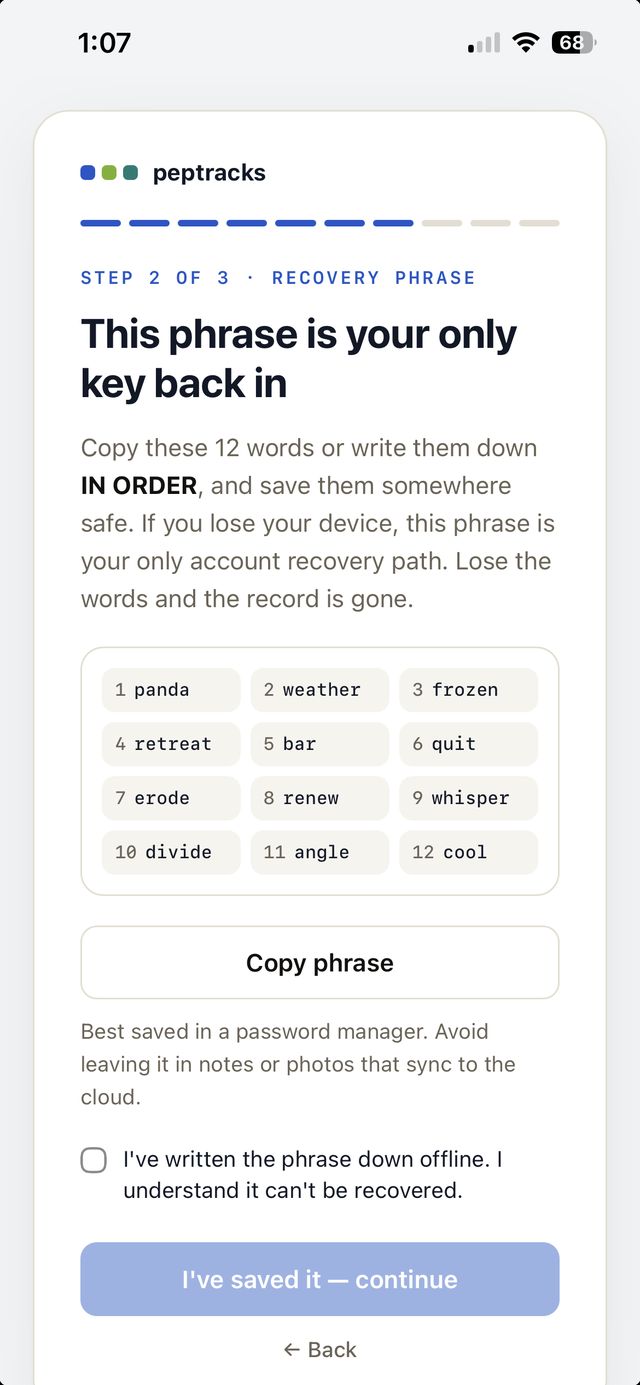
Save your recovery phrasepeptracks will show you a 12-word recovery phrase. Tap Copy phrase and store it somewhere safe — a password manager is ideal. Because peptracks doesn't ask for your name or email, this phrase is the only way to get back into your account if you lose or change your phone.Don't skip this. Write it down or save it in a password manager before you continue. Avoid leaving it in notes or photos that sync to the cloud. If you lose these words, your record can't be recovered — by you or by us.
-
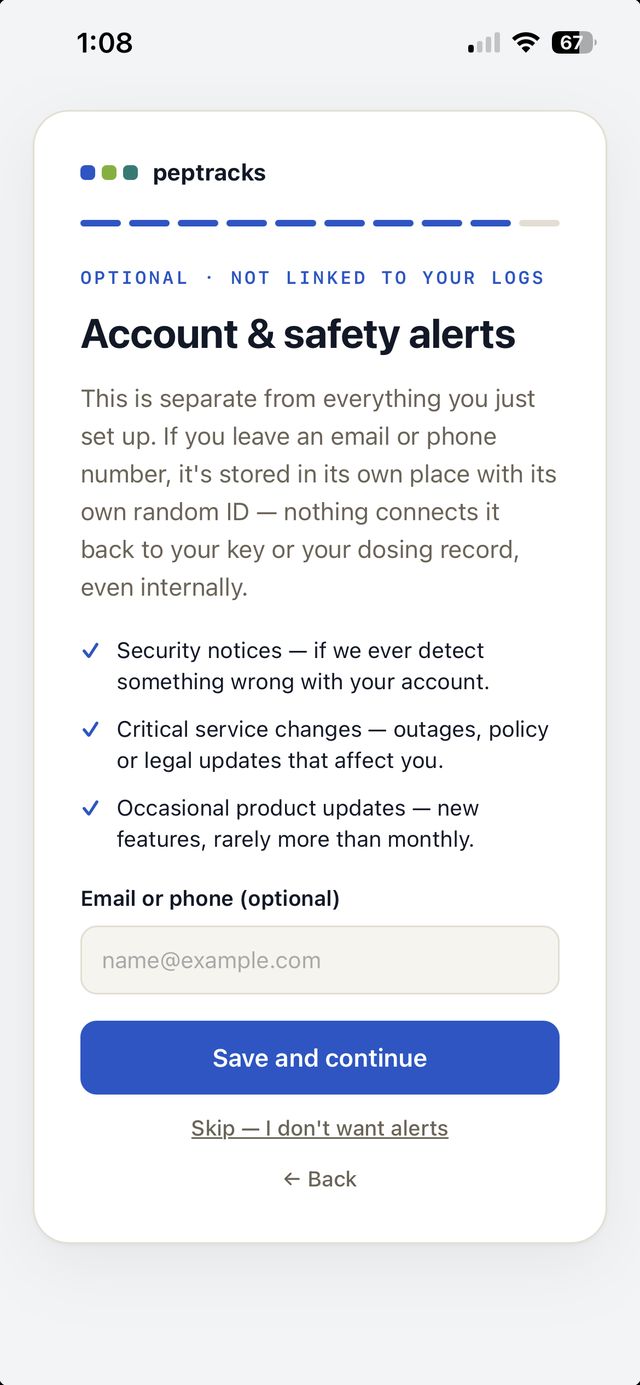
Add contact info for alerts — optionalYou can optionally add an email or phone number to get important updates (security notices, service changes). This is entirely optional, and you can skip it.How this is kept separate. peptracks is built so that any contact info you provide is stored on its own, apart from your protocols and dosing data — it isn't linked back to them. If you'd rather share nothing, just tap Skip.
-
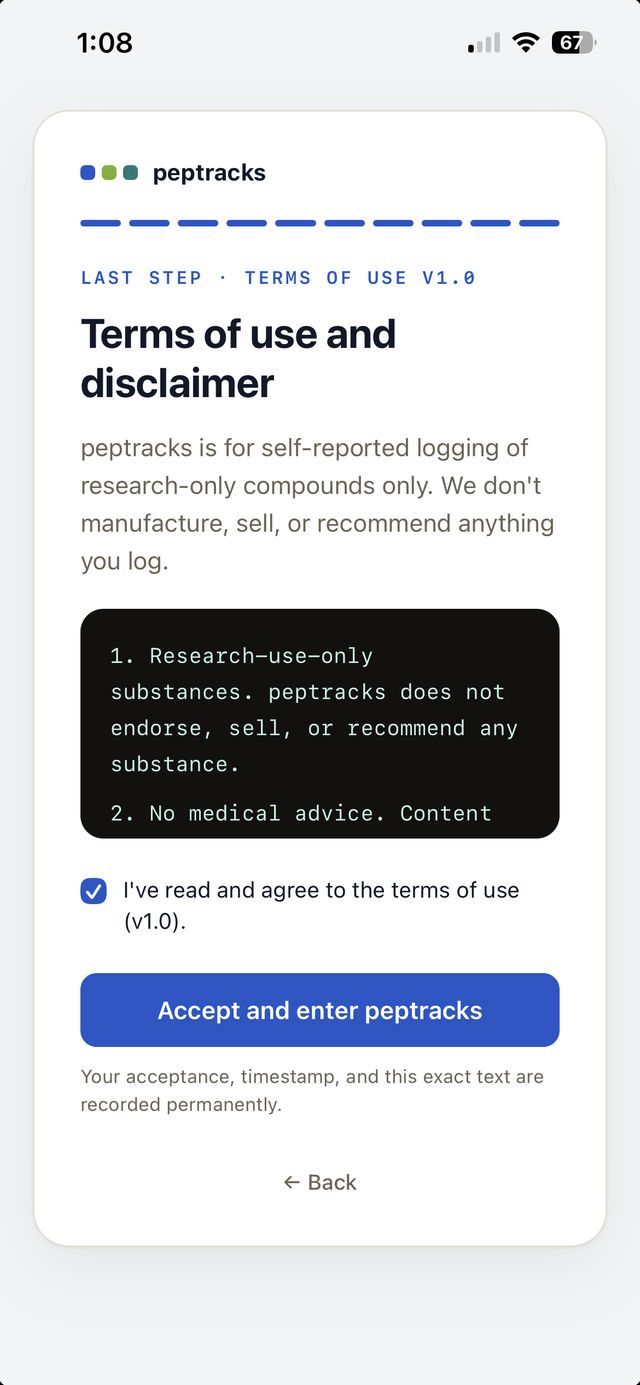
Review and accept the termsRead the short terms of use and disclaimer, check the box, and tap Accept and enter peptracks. In plain terms: peptracks is for self-reported logging of research-use compounds, we don't sell or recommend anything you log, and nothing here is medical advice.
-
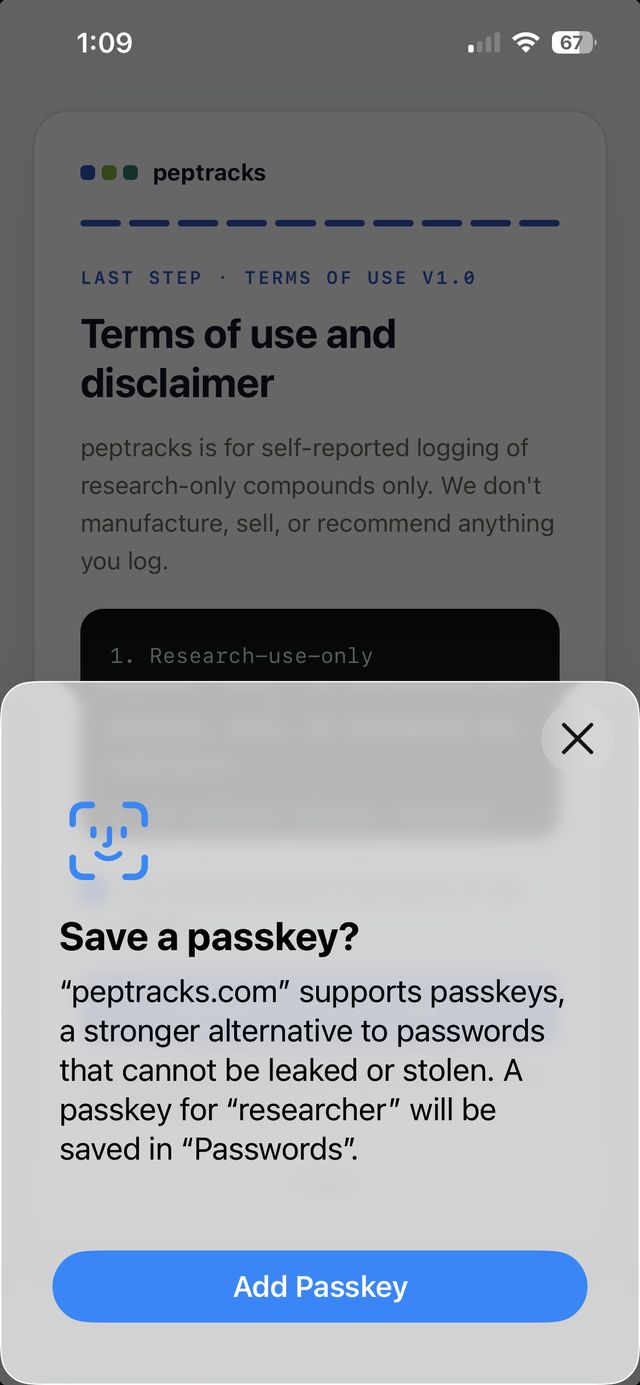
Set up your passkey (Face ID / fingerprint)You'll be prompted to save a passkey. A passkey uses your phone's built-in security — Face ID or fingerprint — to unlock peptracks. Tap Add Passkey. From now on, logging in is as simple as looking at your phone.What's a passkey? It's a modern, safer replacement for passwords. It stays on your device, can't be leaked or stolen the way a password can, and it's what makes daily logins fast. Your 12-word phrase from earlier is still your backup for switching devices.
That's it — you're in. 🎉
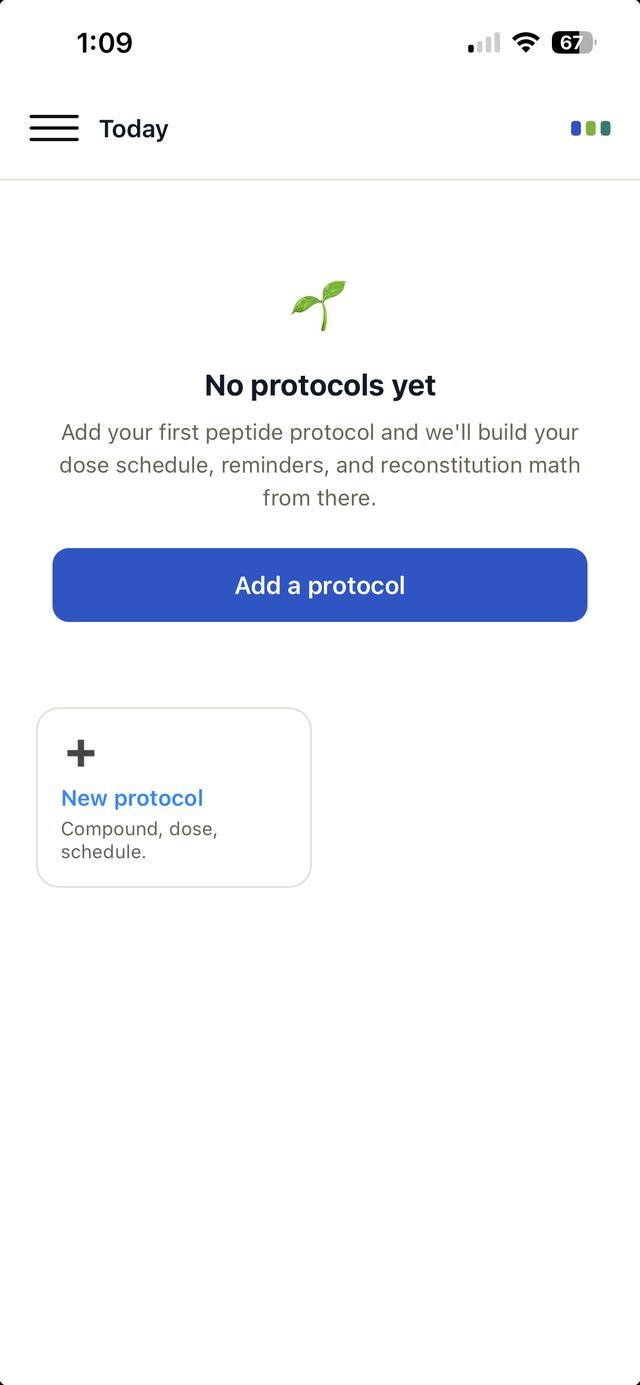
You'll land on your home screen. It'll be empty at first — that's your cue: you're ready to start adding your protocols! Tap Add a protocol and peptracks will build your dose schedule, reminders, and reconstitution math from there.
i A note on privacy during the pilot
peptracks is designed around a simple principle: your identity should stay separate from your dosing data. During this pilot phase we're still rolling out the full encryption layer that will make your personal logs unreadable to anyone but you. We'll let you know when it's live. In the meantime, please treat the pilot as an early preview, and reach out with any questions about how your data is handled.